
Integrating Supertab with Piano
This guide will walk you through how to use Piano to handle entitlements for single item purchases made with Supertab.
Prerequisites
You will need:
- Your Piano
aid(Application ID) - Your Piano
rid(Resource ID) - The Piano API End point that Supertab will comunicate with and API Key (eg:
https://api.piano.io/api/v3/publisher/user/access/grant) - A working Supertab Site and Experience.
Purchase & Entitlement Flow
When a user is presented with the Supertab paywall, they will be given the option to purchase an offering. Once the purchase is successful a webhook will be fired to the Piano /access/grant API end point with the following information:
- The user's Piano ID (
uid) - The page URL that the purchase was made (
url) - The Piano application ID (
aid) - The Piano resource ID (
rid)
The Piano api will then update the users access permission for that application, resource, and page.
Configuring The Supertab Webhook
- Login to the Business Portal
- Click on "Current Organization", then select "Webhooks"
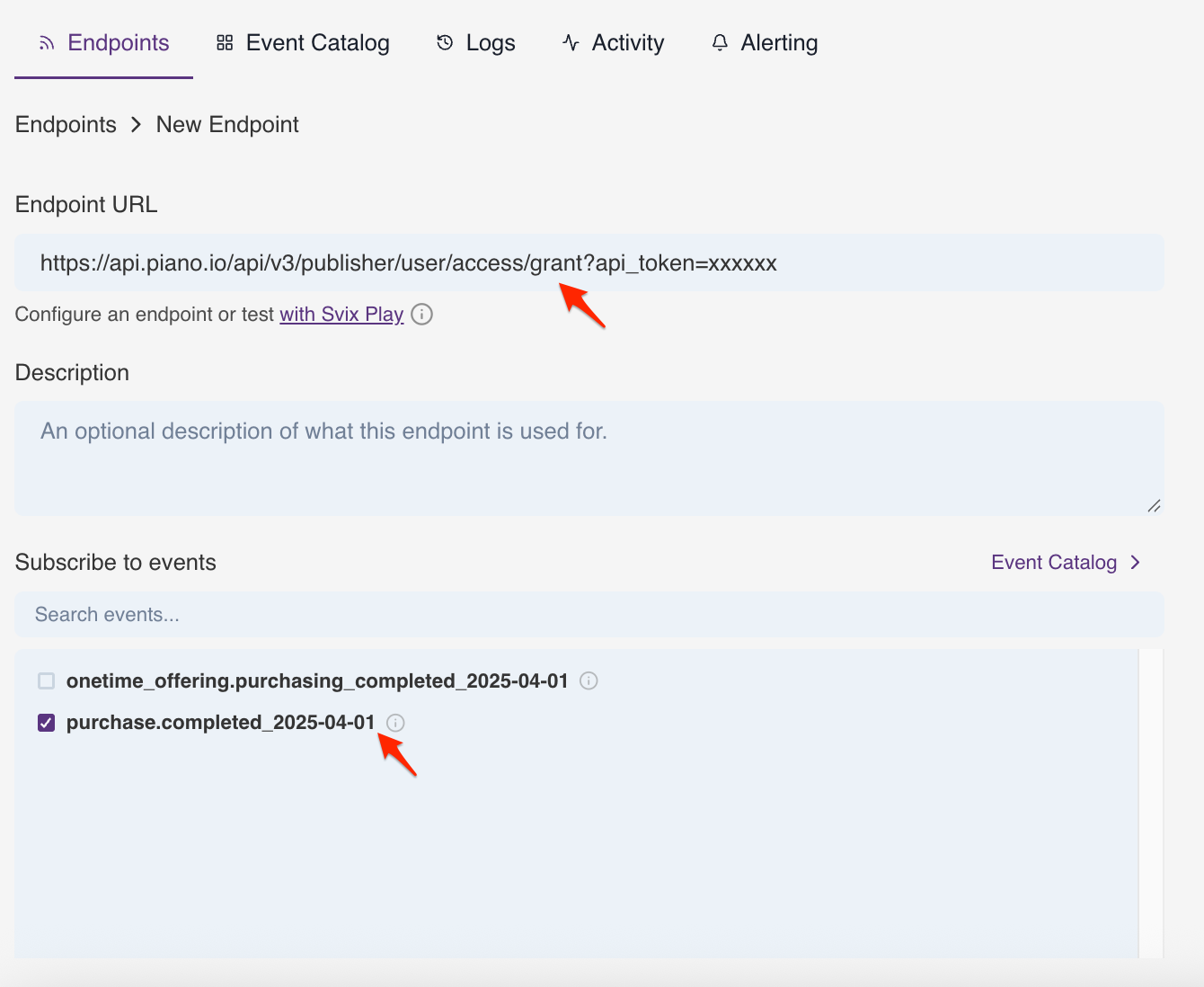
- Click on "Add Endpoint"
-
For the endpoint URL, use your Piano API URL with the api key appended to the url:
https://api.piano.io/api/v3/publisher/user/access/grant?api_token=xxxxx - Select the "puchase.completed" event.
- Click "Create"
Configuring Webhook Transformation
The Piano API expects data to be in format that is different than the Supertab webhook data.
- Click on "Advanced"
- Click on "Edit Transformation"
- Update the transformation code to the following, ensuring to using the correct Piano
aidandridvalues.
function handler(webhook) {

  //Get the values we need out of the payload that are required by Piano
  const pianoUID = webhook.payload.data.metadata.pianoUser
  const pageURL = webhook.payload.data.metadata.url
  const aid = "XXXX"
  const rid = "XXXX"
  const send_email = "false"

  //Payload sent to Piano api on successful payment

  webhook.payload = {aid: aid,
                     rid: rid,
                     send_email: send_email,
                     uid: pianoUID,
                     url: pageURL
                     }

  // and return it as application/x-www-form-urlencoded
  webhook.payload = Object.entries(webhook.payload)
    .map(([key, value]) => `${encodeURIComponent(key)}=${encodeURIComponent(value)}`)
    .join('&');

  return webhook
}
- Click "Save".
Installing Supertab.js in Composer
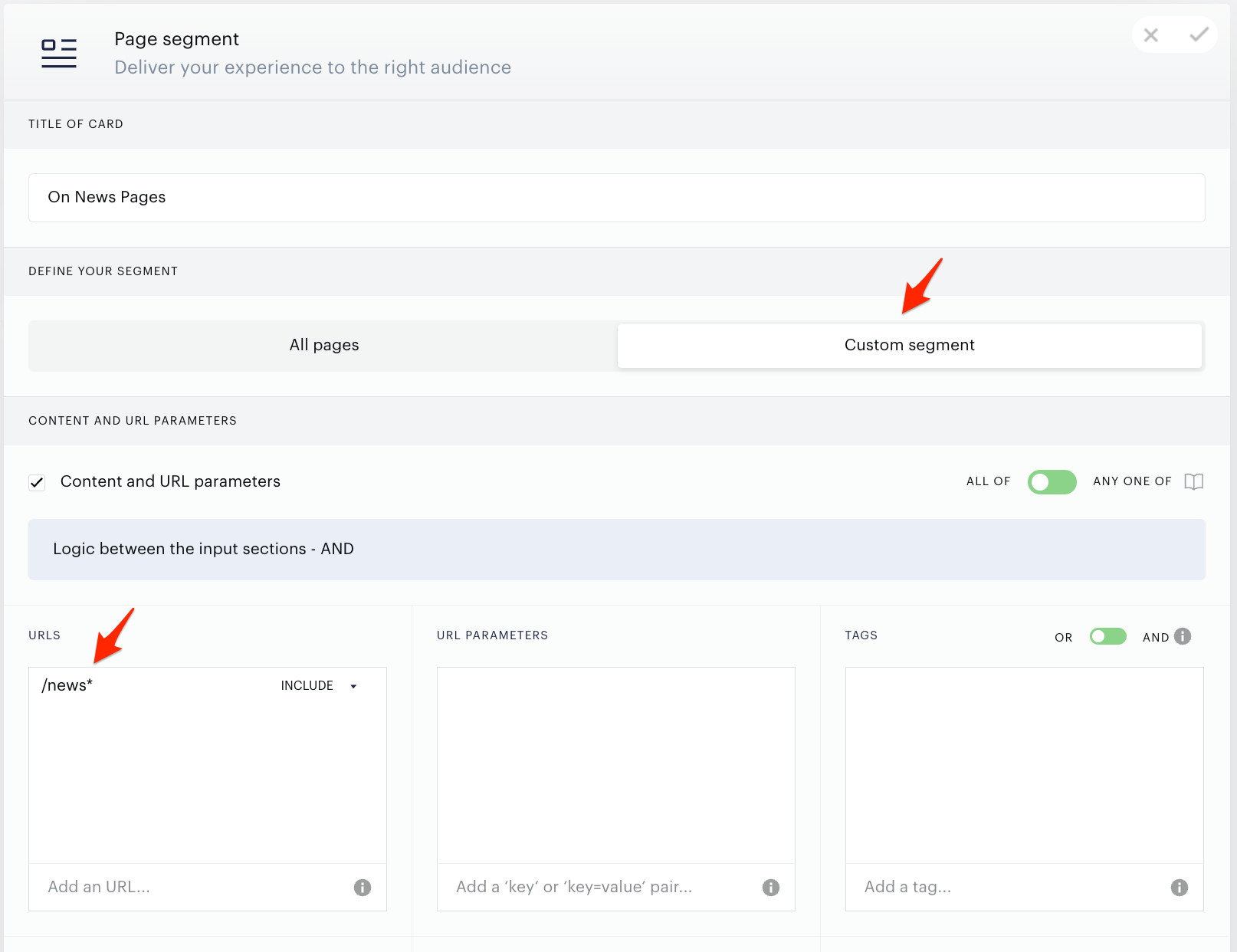
Create or edit an existing Experience in Composer for pages you want to display the Supertab paywall on. In this example, we will want to charge for content located at /news
- Edit the Page Segment parameters to the following:
- Custom Segment
- Content and URL parameters: only match
/news*URLs
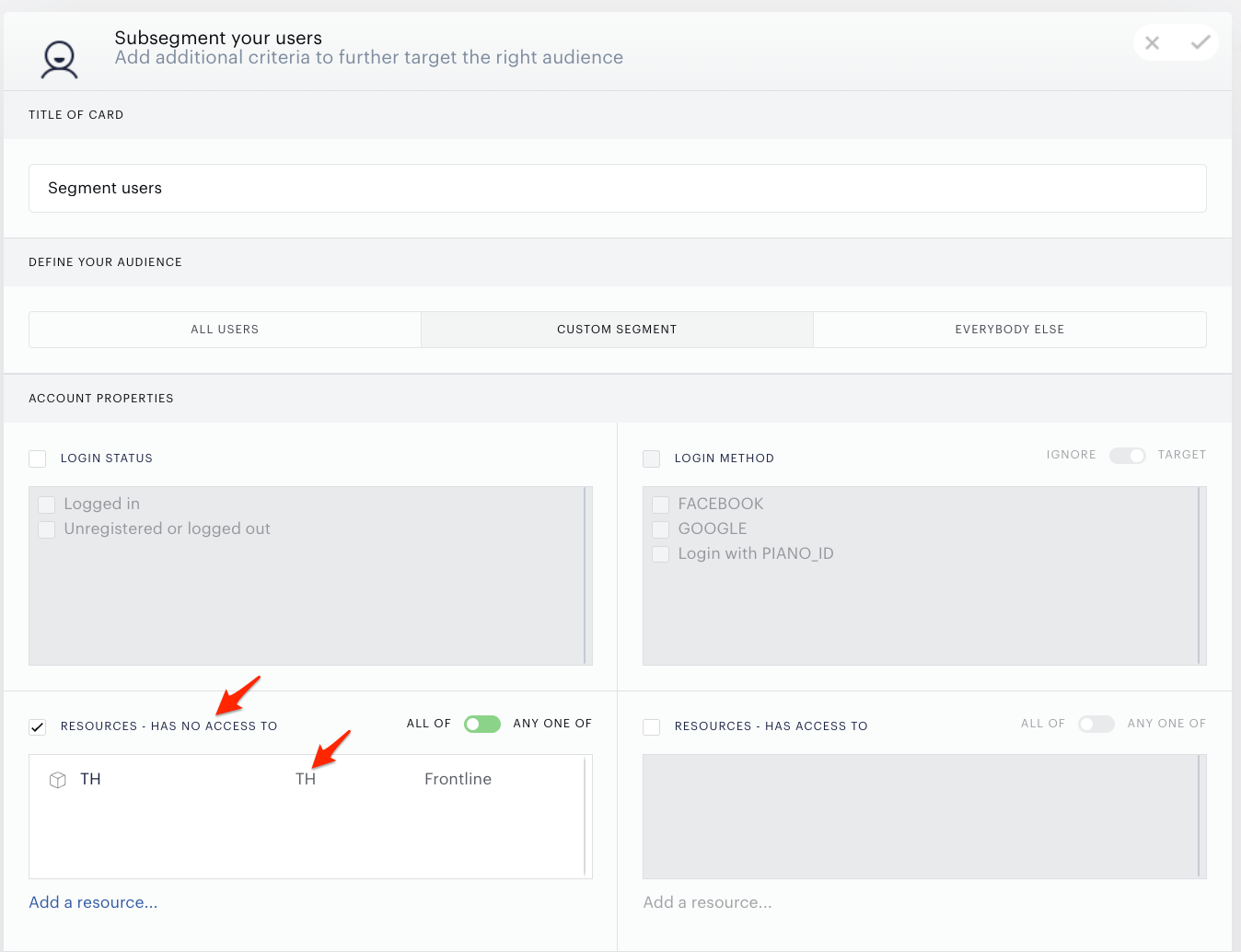
- Add a "Segment Users" Branch and specify a Resource (
rid) that the user will not have access to unless they pay via Supertab.
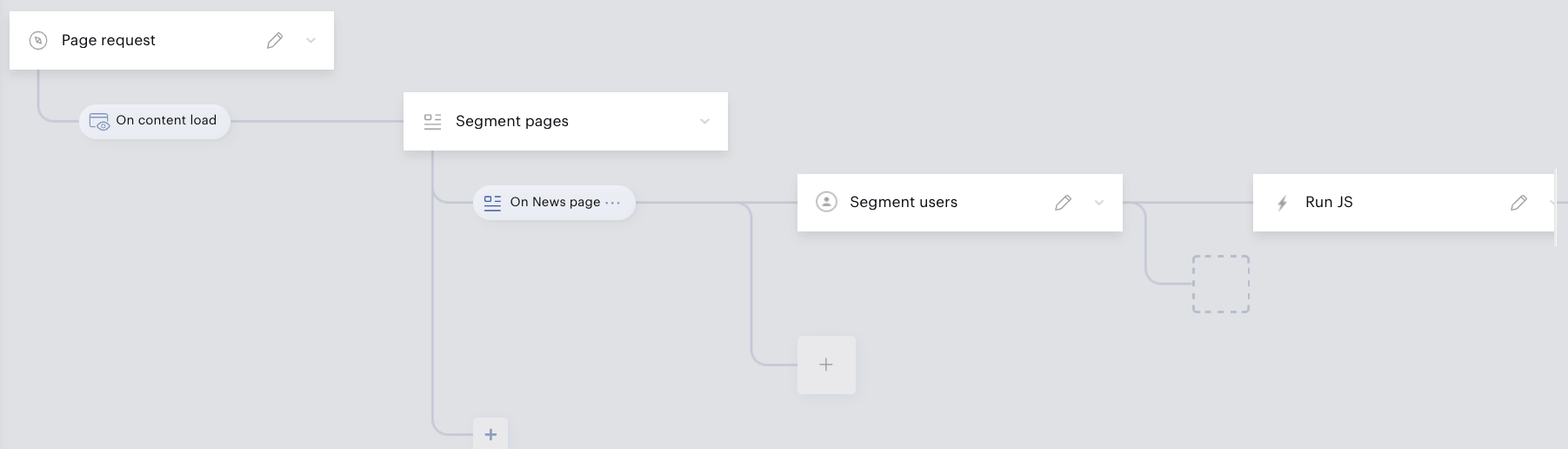
- Add a "Run JS" Action
The Experience editor in Composer should look something like this:
Supertab/Piano Javascript
We're going to use a slightly modified version of the Supertab.js include code as provided by the Business Portal.
The inclusion of the purchaseMetadata object when creating the Purchase Button:
purchaseMetadata: {pianoUser: tp.pianoId.getUser()?.uid || '0',
					   url: window.location.href},
This will pass the Piano User ID of the currently logged user. Otherwise it will use a uid of 0.
A simple modal dialog box to include the Supertab Purchase button. This box can be styled or customized by adjusting the code as required.
function createModal(options = {}) {
  const {
    title = "Pay to Continue",
    message = "You must pay to view this content",
    buttonText = "",
  } = options;

  // Create overlay
  const overlay = document.createElement("div");
  overlay.style.position = "fixed";
  overlay.style.top = 0;
  overlay.style.left = 0;
  overlay.style.width = "100%";
  overlay.style.height = "100%";
  overlay.style.backgroundColor = "rgba(0, 0, 0, 0.75)";
  overlay.style.display = "flex";
  overlay.style.justifyContent = "center";
  overlay.style.alignItems = "center";
  overlay.style.zIndex = "9999";

  // Create modal box
  const modal = document.createElement("div");
  modal.style.background = "#fff";
  modal.style.padding = "2em";
  modal.style.borderRadius = "8px";
  modal.style.boxShadow = "0 4px 12px rgba(0,0,0,0.2)";
  modal.style.maxWidth = "400px";
  modal.style.textAlign = "center";
  modal.style.fontFamily = "sans-serif";

  // Title
  const h2 = document.createElement("h2");
  h2.textContent = title;

  // Message
  const p = document.createElement("p");
  p.textContent = message;

  // Button
  const button = document.createElement("button");
  button.id = "button";

  // Append children
  modal.appendChild(h2);
  modal.appendChild(p);
  modal.appendChild(button);
  overlay.appendChild(modal);
  document.body.appendChild(overlay);

  // Optional: block scrolling
  document.body.style.overflow = "hidden";
}

createModal({
  onClick: () => {
    tp.offer.show({ offerId: 'your-offer-id', displayMode: 'modal' });
  }
});
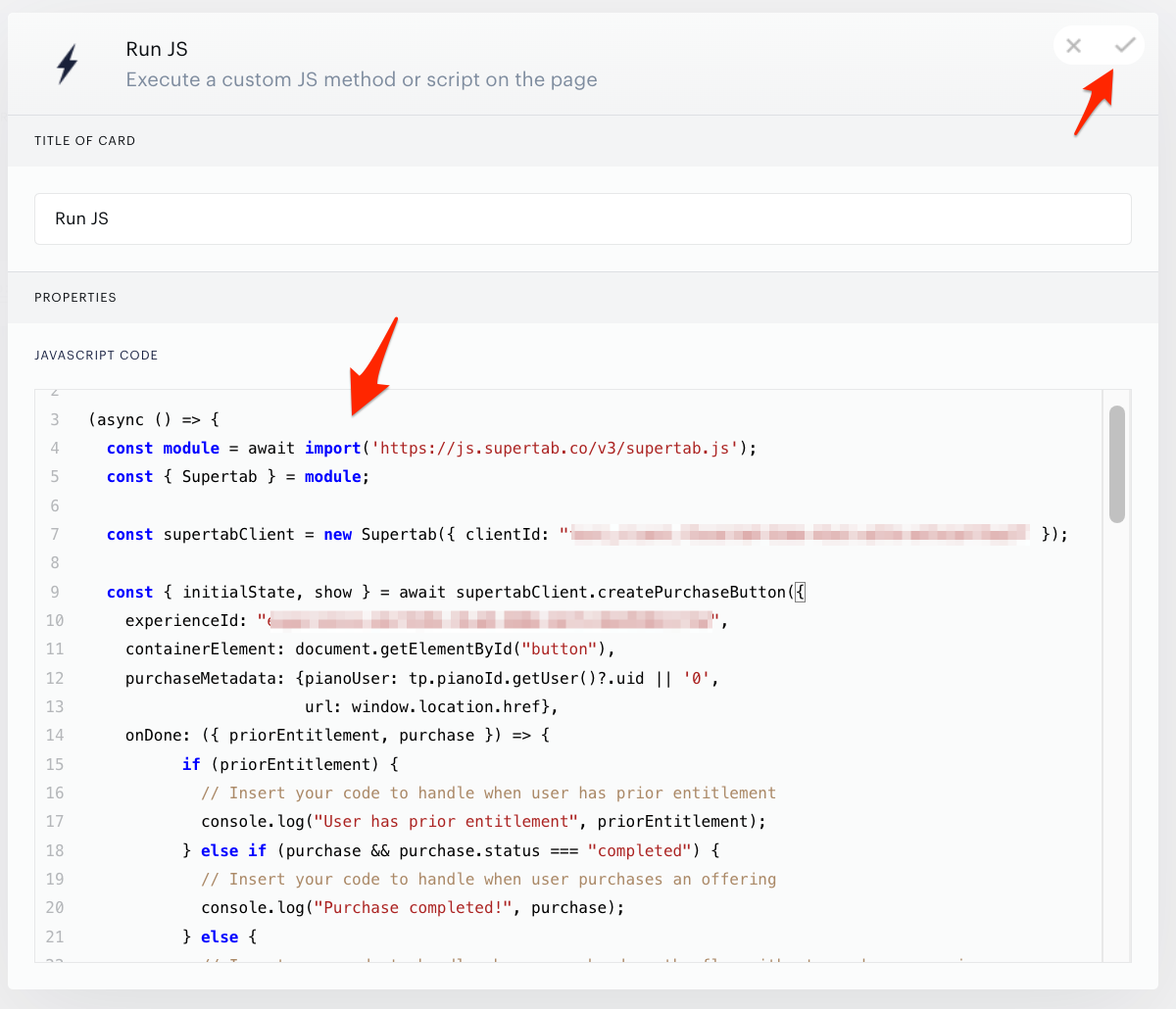
- Paste the code in its entirety into the "Run JS" action in Composer:
(async () => {
  const module = await import('https://js.supertab.co/v3/supertab.js');
  const { Supertab } = module;

  const supertabClient = new Supertab({ clientId: "test_client.f3cdcfa9-51bb-41e1-a37d-e47e1df75a27" });

  const { initialState, show } = await supertabClient.createPurchaseButton({
    experienceId: "experience.edc7428c-9ca8-460e-bb73-8de958b117da",
    containerElement: document.getElementById("button"),
    purchaseMetadata: {pianoUser: tp.pianoId.getUser()?.uid || '0',
					   url: window.location.href},
    onDone: ({ priorEntitlement, purchase }) => {
          if (priorEntitlement) {
            // Insert your code to handle when user has prior entitlement
            console.log("User has prior entitlement", priorEntitlement);
          } else if (purchase && purchase.status === "completed") {
            // Insert your code to handle when user purchases an offering
            console.log("Purchase completed!", purchase);
          } else {
            // Insert your code to handle when user abandons the flow without purchase or prior entitlement
            console.log("Purchase canceled!");
          }
        }
  });
})();


function createModal(options = {}) {
  const {
    title = "Pay to Continue",
    message = "You must pay to view this content",
    buttonText = "",
  } = options;

  // Create overlay
  const overlay = document.createElement("div");
  overlay.style.position = "fixed";
  overlay.style.top = 0;
  overlay.style.left = 0;
  overlay.style.width = "100%";
  overlay.style.height = "100%";
  overlay.style.backgroundColor = "rgba(0, 0, 0, 0.75)";
  overlay.style.display = "flex";
  overlay.style.justifyContent = "center";
  overlay.style.alignItems = "center";
  overlay.style.zIndex = "9999";

  // Create modal box
  const modal = document.createElement("div");
  modal.style.background = "#fff";
  modal.style.padding = "2em";
  modal.style.borderRadius = "8px";
  modal.style.boxShadow = "0 4px 12px rgba(0,0,0,0.2)";
  modal.style.maxWidth = "400px";
  modal.style.textAlign = "center";
  modal.style.fontFamily = "sans-serif";

  // Title
  const h2 = document.createElement("h2");
  h2.textContent = title;

  // Message
  const p = document.createElement("p");
  p.textContent = message;

  // Button
  const button = document.createElement("button");
  button.id = "button";

  // Append children
  modal.appendChild(h2);
  modal.appendChild(p);
  modal.appendChild(button);
  overlay.appendChild(modal);
  document.body.appendChild(overlay);

  // Optional: block scrolling
  document.body.style.overflow = "hidden";
}

createModal({
  onClick: () => {
    tp.offer.show({ offerId: 'your-offer-id', displayMode: 'modal' });
  }
});
- Save the JS Code
- Save and publish your experience in Composer.
Testing
- On your site, visit a page where the experience we just created in Composer will fire. You should see a new dialog box with the supertab single item purchase button is displayed.
- Click on the purchase button and add the item to your tab.
- Confirm that the webhook was fired properly from the Business Portal

If you require any additional assistance with setting up this or any other integration of Supertab with Piano, please contact support@supertab.co