
Onboarding
When you log in to Supertab Connect for the first time, you'll be guided through a short setup wizard. This article walks through each step so you know what to expect before you begin.
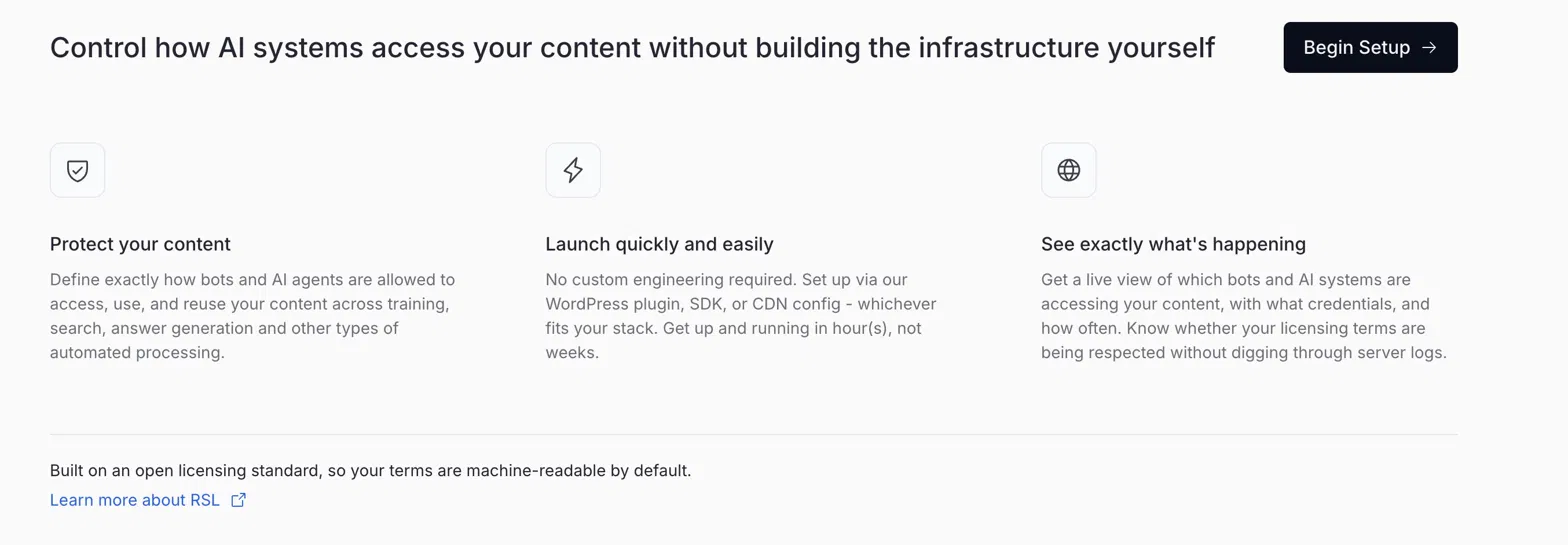
Supertab Connect handles three core jobs:
- Protects your content — by defining and publishing your licensing terms
- Launches quickly — through a guided setup flow
- Gives you visibility — into how AI systems are accessing your content
Click Begin Setup to get started.
Step 1: Add your website details
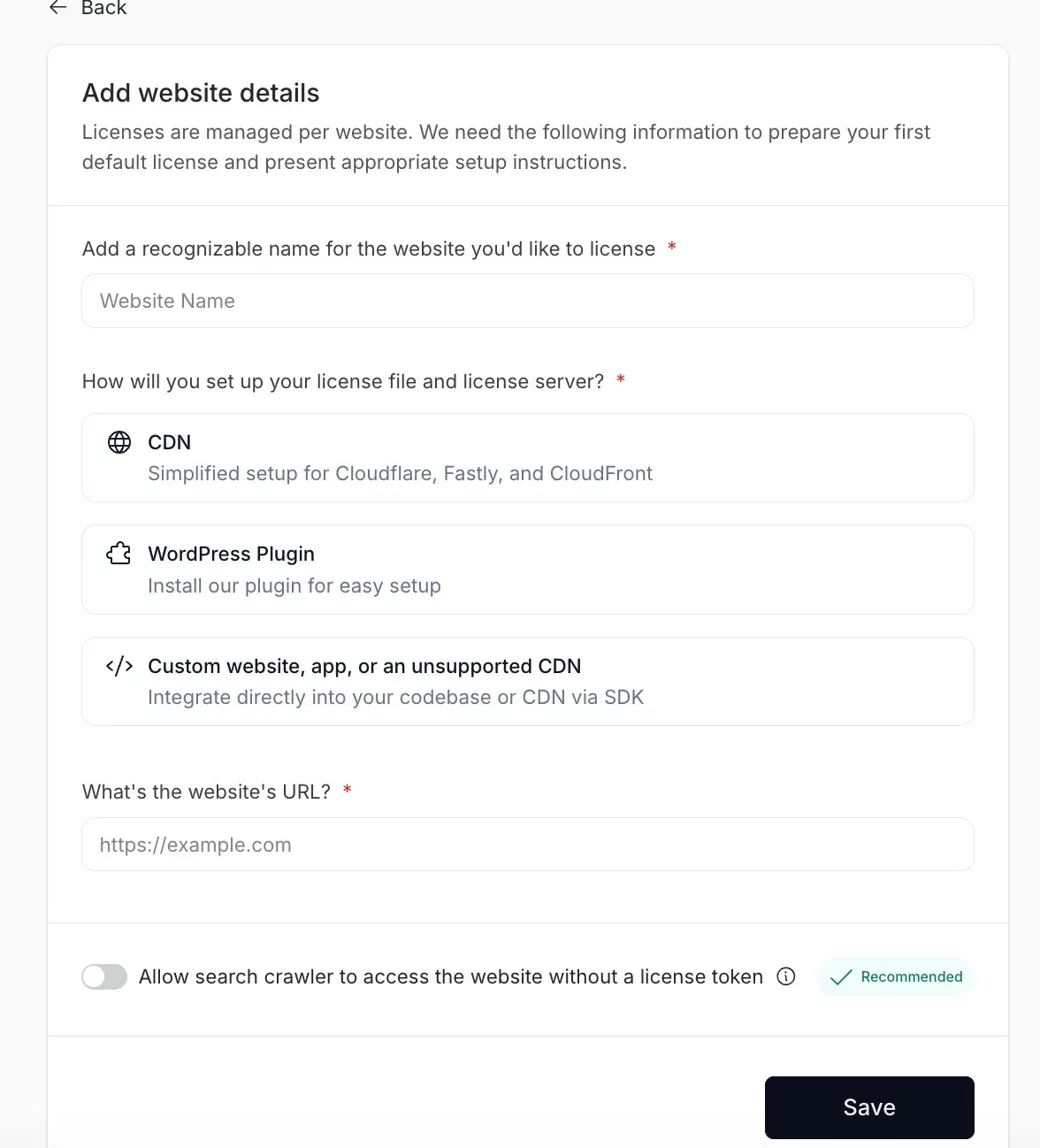
The first thing you'll do is register a website. Licenses in Supertab Connect are managed per website, so this is the domain you want to protect.
- Name — give your website a recognizable name. This matters if you end up managing multiple properties.
- URL — enter your website's base domain (for example,
https://example.com). - Deployment method — choose how you'll enforce your license:
- CDN — for Cloudflare, Fastly, or CloudFront. This is the most powerful option and gives you full edge enforcement.
- WordPress Plugin — the easiest path if your site runs on WordPress. No CDN configuration required.
- Custom website or unsupported CDN — uses the Supertab SDK and integrates directly into your codebase. More flexible, but more technical.
- Allow search crawlers to access the website without a license token — this toggle is marked Recommended, and for good reason. Standard search bots like Googlebot aren't the audience you're licensing against. Leaving this on means your SEO indexing won't break once enforcement goes live.
Click Save once you've filled in the form.
Step 2: Review your default license
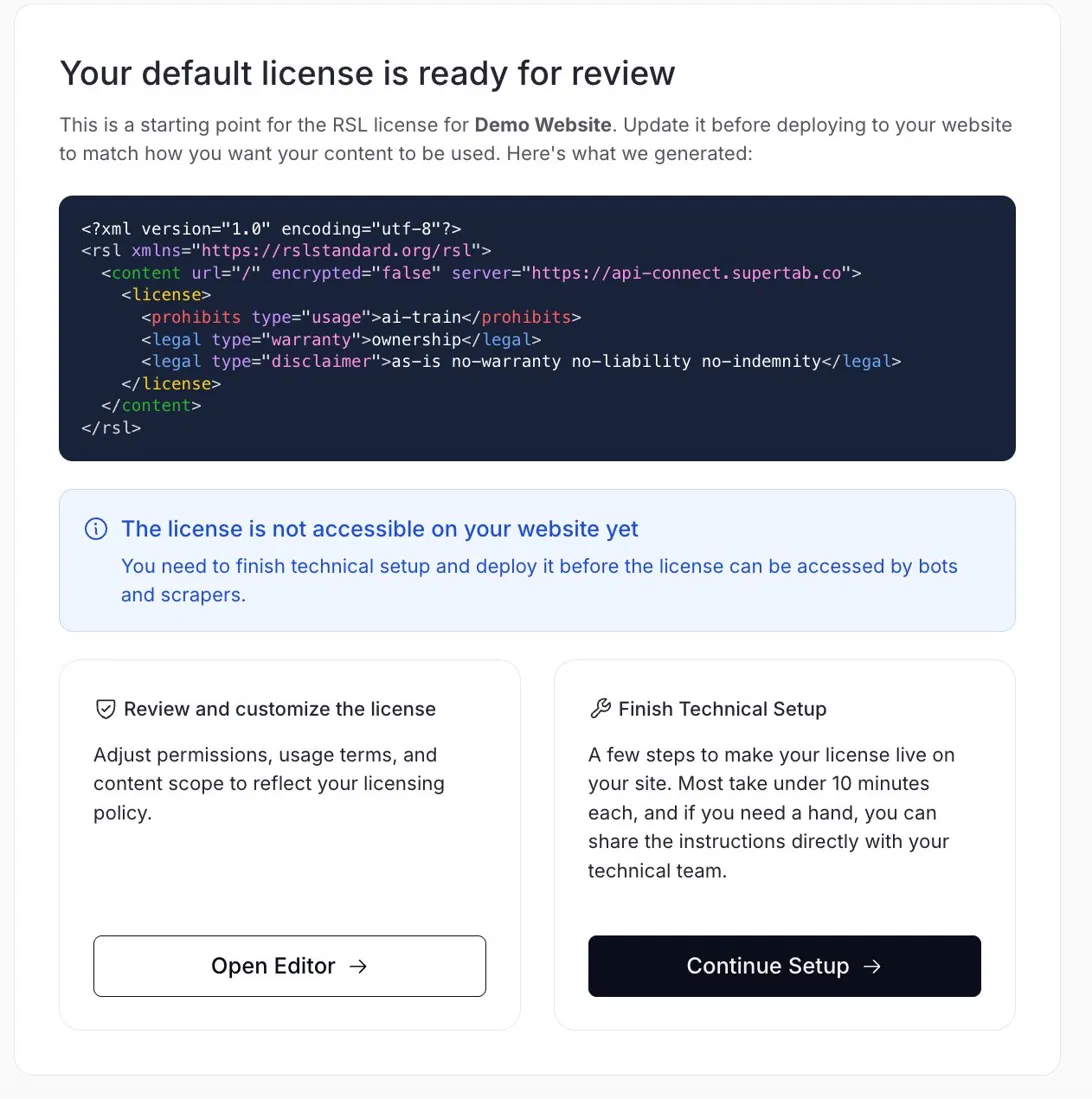
After saving your website, Supertab Connect automatically generates a default RSL (Really Simple Licensing) license for you, shown as raw XML.
You don't need to understand XML to use this — here's what matters:
- The license covers all URLs on your site by default (
urls="/*"). - The default license prohibits AI training, which is a sensible starting position for most publishers.
- You'll see a banner noting that the license is not accessible on your website yet. That's expected — you haven't finished the technical setup, so bots can't read it yet.
From here you have two paths:
- Open Editor — customize your license terms: what's permitted, what's prohibited, and your commercial terms.
- Continue Setup — move on to the technical deployment steps needed to make your license live.
Step 3: Complete technical setup
This step is a two-part checklist:
- Robots.txt update — tells compliant crawlers that a license exists. You'll add one line to your
robots.txtfile:
License: https://yourdomain.com/license.xml
The dashboard shows you the exact line to add, and includes a Verify button so you can confirm it worked once it's live.
- CDN or SDK integration — routes your
license.xmlthrough Supertab's servers and deploys the enforcement SDK at the edge. This typically takes about 30 minutes.
> Note: This step may require technical assistance. If it's not something you want to do yourself, use the Copy Instructions button to hand the steps directly to your developer or infrastructure team — they won't need dashboard access to complete it.
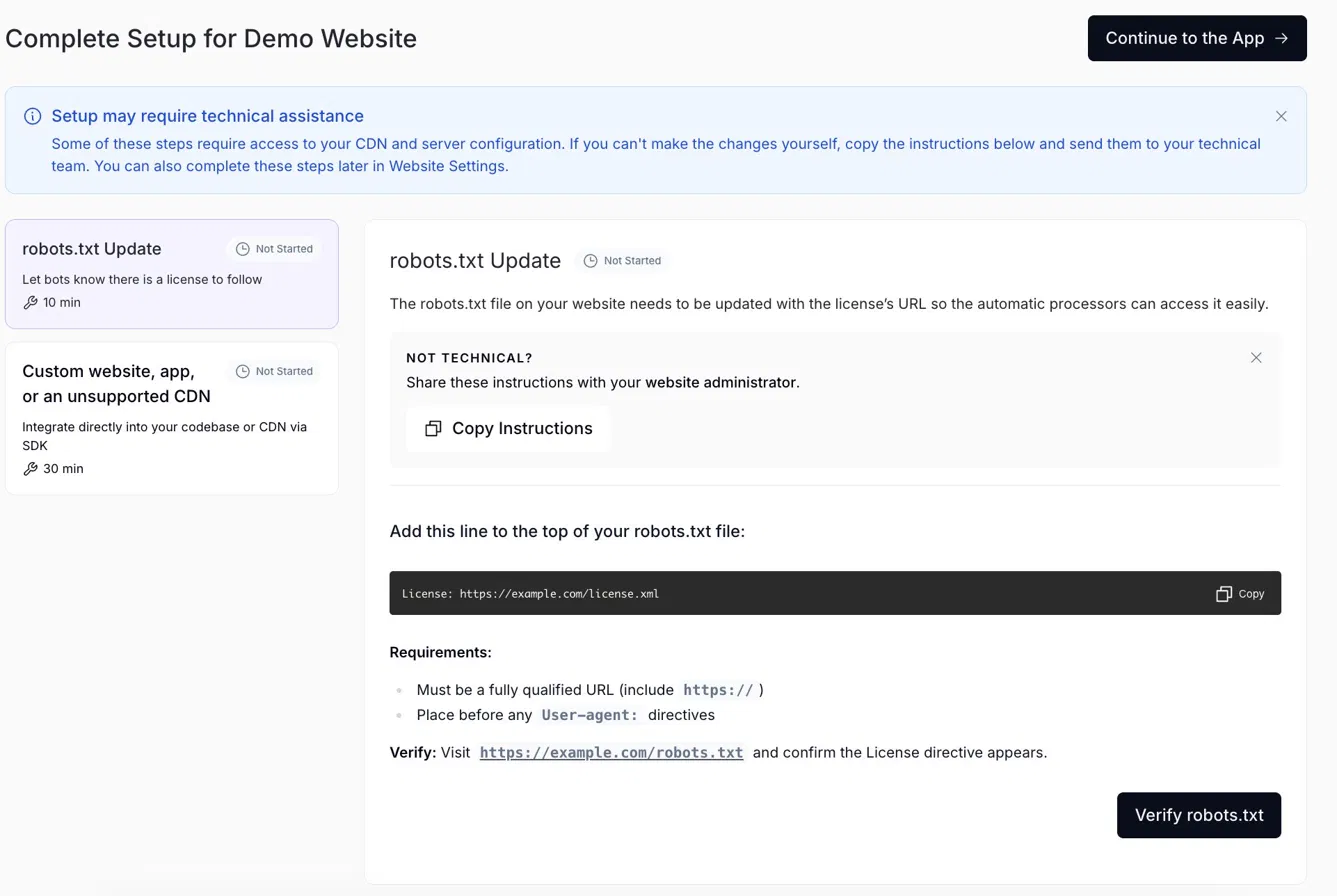
If you're not ready to complete these steps right away, click Continue to the App in the top right. You can always finish setup later from Settings → Website.